
Manage your catalogue from the Dashboard
Create, edit, search and delete products from the Portal Hero Dashboard and watch them synchronise with the portals.
For those customers who do not wish to carry out a technical integration to synchronise their product catalogue, Portal Hero provides a Dashboard in which to keep the catalogue up to date, which is then pushed to the customer's various accounts on the different portals they work with.
Uploading products
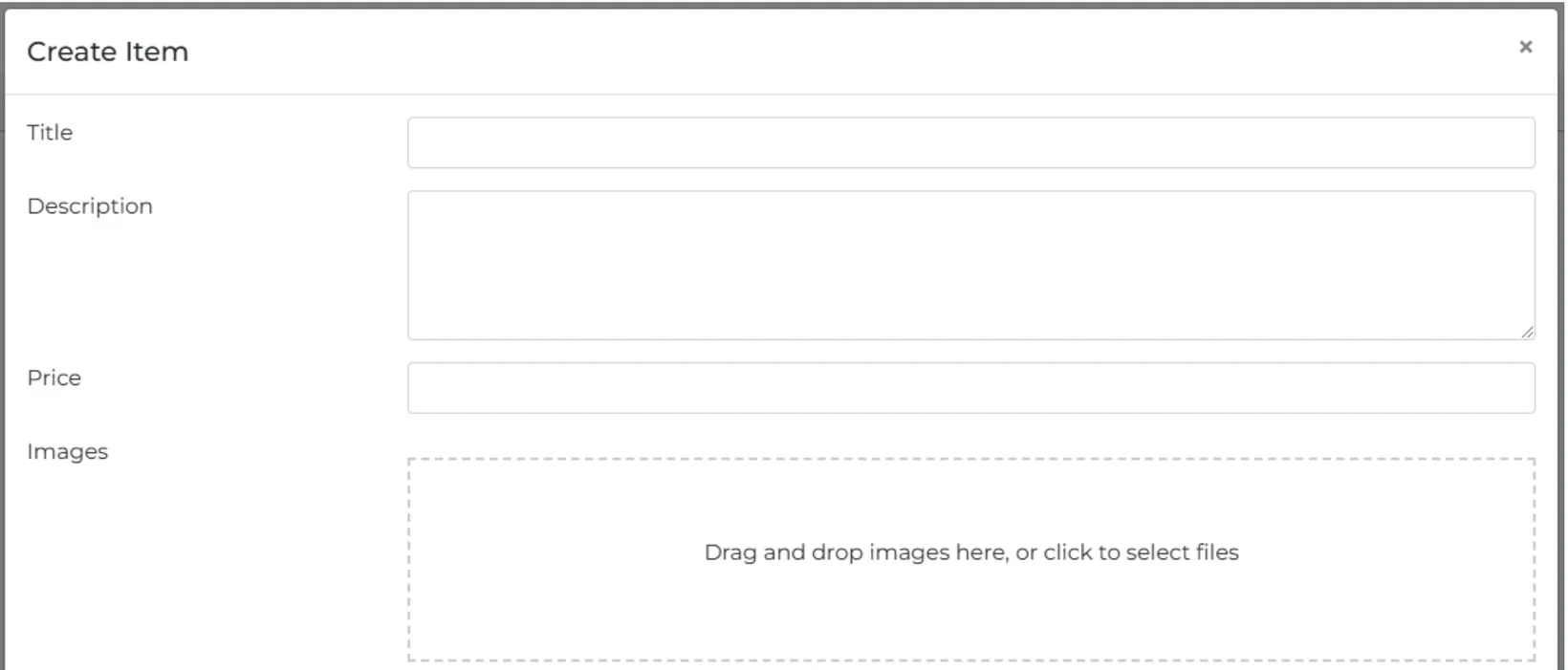
Using the "create new product" button opens a panel with all the fields and selectors needed to upload a new product to the Dashboard.
In the images section you can drag them in directly or select them from a local file. On mobile web the option to take photos with the camera is also enabled. It is important to note that photos are published on the portals in the order they were uploaded to the Dashboard, with the product's cover photo on the portal being the first one uploaded to the Dashboard.
Once all the fields required to create the product have been completed, all you need to do is click the "save" button at the bottom of the panel for the product to be created in the Dashboard.
For customers who already have products published on the portals, Portal Hero can carry out a download of the entire published catalogue and a subsequent upload to the Dashboard, so that the transition from one platform to another is instant and no previously done work is lost.
Editing products
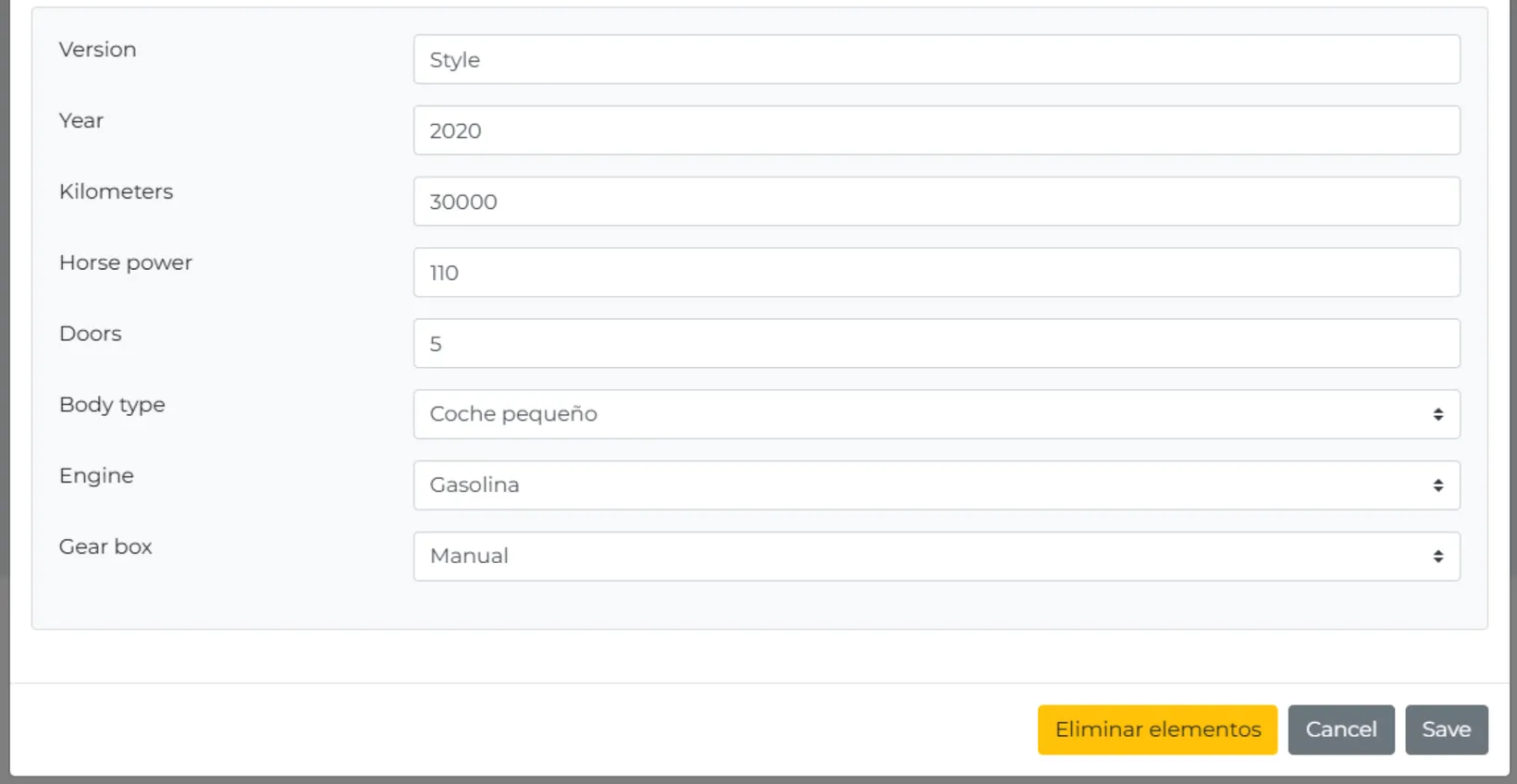
To edit any field of a product, such as the price, or to add new images, all you need to do is click on the product you want to modify and the panel with all the product's fields and selectors will appear. After making the changes you will need to click the "save" button at the bottom of the panel.
Deleting products
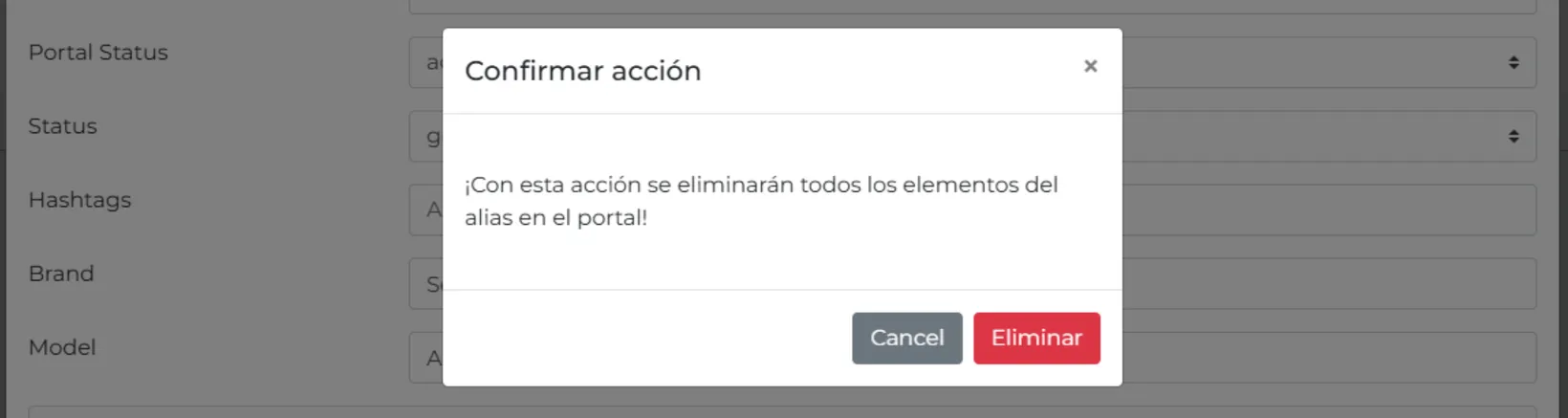
There is the option to delete products individually from the catalogue listing or within the product panel, which opens when you click on the product in question. In this latter option you must click the "Delete" button at the bottom of the panel and a window will open to confirm the action.
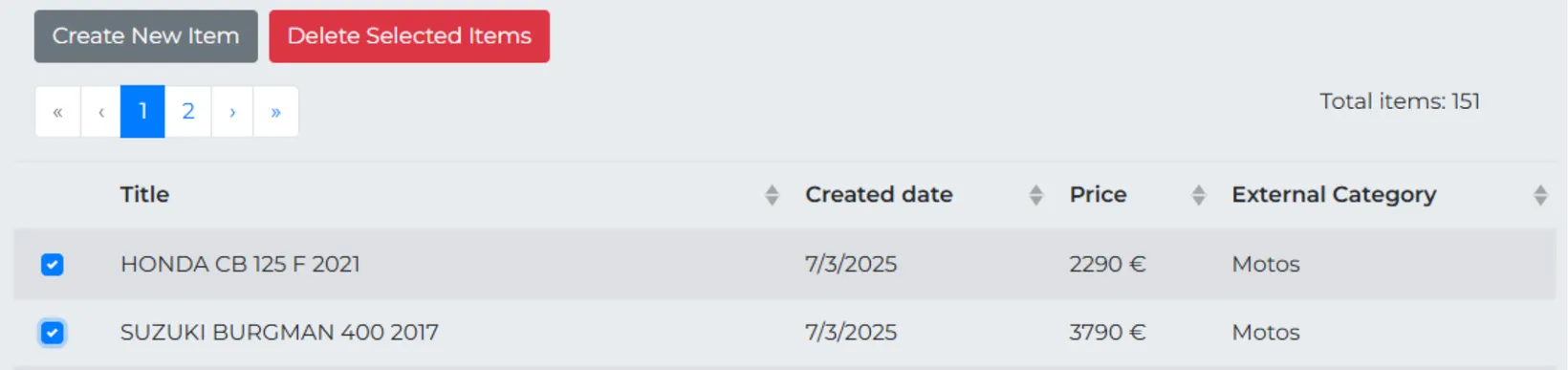
If you want to delete more than one product at a time, you must do so from the catalogue listing by selecting all the products you want to delete. When you select one or more products, a red button will appear at the top of the listing to delete them.
Searching for products
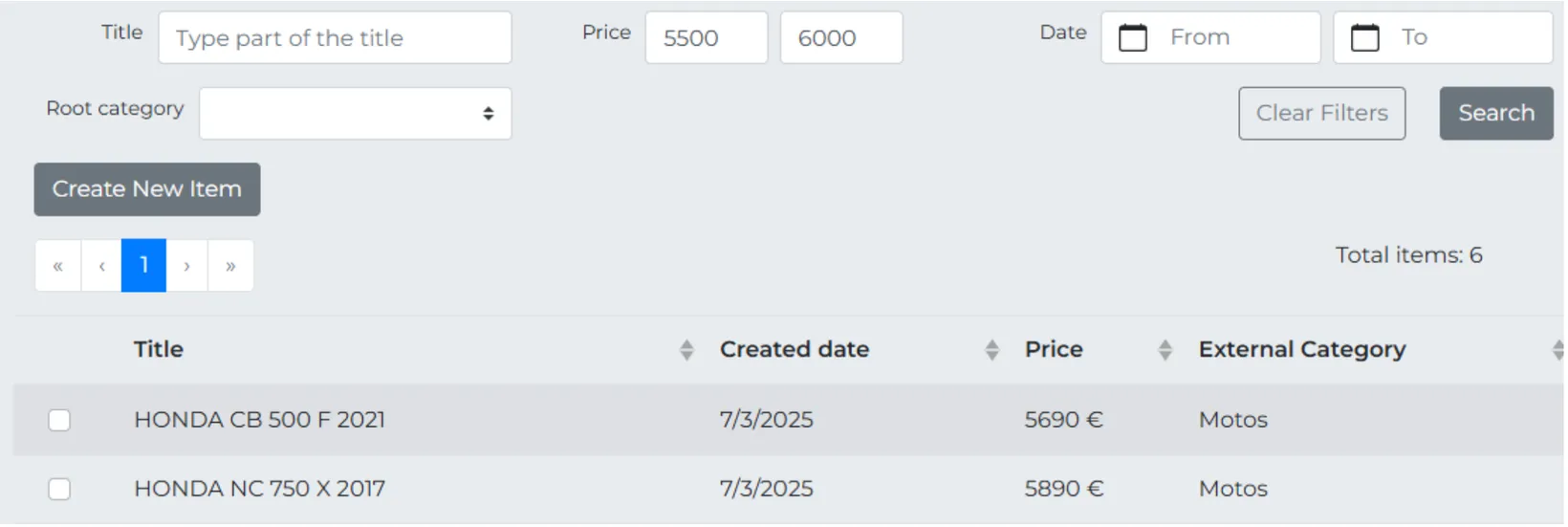
At the top of the Dashboard product listing there is a set of filters that let you easily find all the products according to the filters you have applied, so you can then carry out any action you need on those products.
Synchronising the catalogue with the portals
The synchronisation with the portals of any action carried out in the Dashboard -adding, editing or deleting a product- does not happen instantly. Synchronisation with the portals runs several times a day, at the times you choose according to your business needs. You have full control to set the moments that matter most for updates, making sure they always reflect the important changes to your products.