
Portal Hero WooCommerce plugin: installation and settings
Install and configure the official WooCommerce plugin to publish your catalogue on the portals from WordPress.
Automate the management of your catalogue on the portals with our WooCommerce export plugin. In this guide, we show you step by step how to install and configure this tool so you can synchronise your products quickly, easily and efficiently. Start making the most of its full potential today!
Installation
You can download the plugin directly here:
Below is a video showing its installation step by step:
Configuration
Once the plugin is installed, it needs to be configured. To reach the configuration page: search for WooCommerce in the left-hand bar and, within that section, "Portal Hero". The following configuration page will then appear:
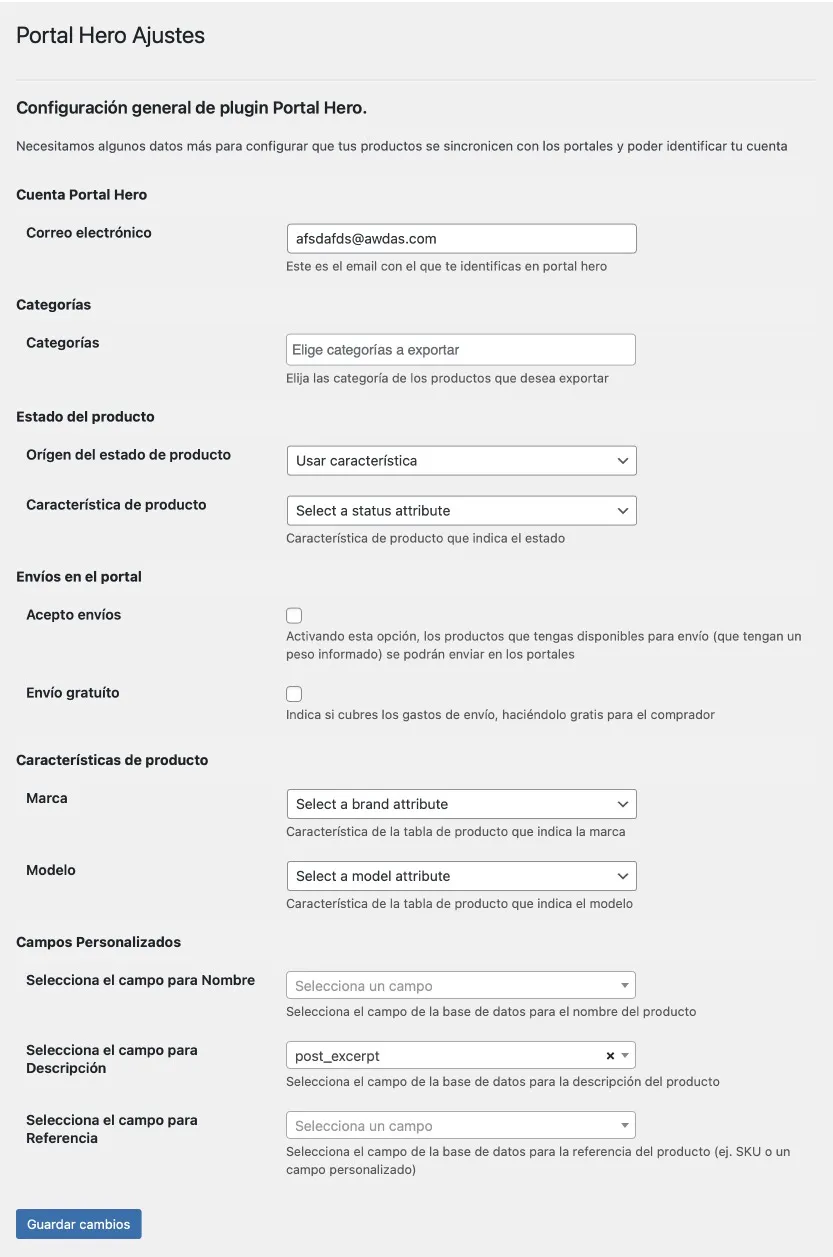
- Email address: Enter the same email address you used to register or communicate with Portal Hero.
- Categories: Select one or more categories from the list of your categories to filter the export. If you do not select anything, the entire catalogue will be exported unfiltered.
- Product condition: There are two options here:
- Use a product attribute: In this case, you will have to select one of your product attributes that indicates the condition. On export, that value will be used for each item.
- Use a default condition: If you do not have a product attribute that indicates the condition, or all your items share the same one, you can select one of the available conditions, and all of them will be exported with it.
- I accept shipping: Enabling this option activates shipping on the portals that offer this service (for example Wallapop Envíos). Items with a weight reported will be marked as available for shipping.
- Free shipping: Enabling this option means all the products in your catalogue will be exported with free shipping on the portals.
- Brand: This setting is optional. If you have a product attribute that indicates the brand, select it.
- Model: This setting is optional. If you have a product attribute that indicates the model, select it.
- Name field: Optional setting. If you want to export a value other than the normal product name, choose which field to use.
- Description field: Optional setting. If you want to export a value other than the normal product description, select from the list the field you want to use.
- Reference field: Optional setting. If you want to export a value other than the normal one as the product's unique reference, select from the list the field you want to use.
How synchronisation with Portal Hero works
For the general workings of synchronising your catalogue with the different portals, you have more information available here.